|
ColorMate 5.1.5 |
|
Short user manual Color selection in many programs, e.g. Adobe Photoshop suffers from the inability of the color pipette  to function outside the main form of the application.
This small program enables you to grab color information from any element
(pixel) visible on the screen and include the selected color in a color palette as one
of up to ten colors. to function outside the main form of the application.
This small program enables you to grab color information from any element
(pixel) visible on the screen and include the selected color in a color palette as one
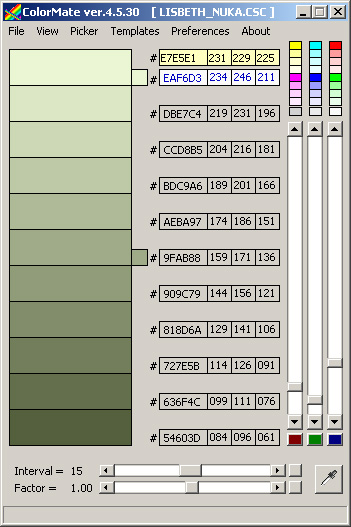
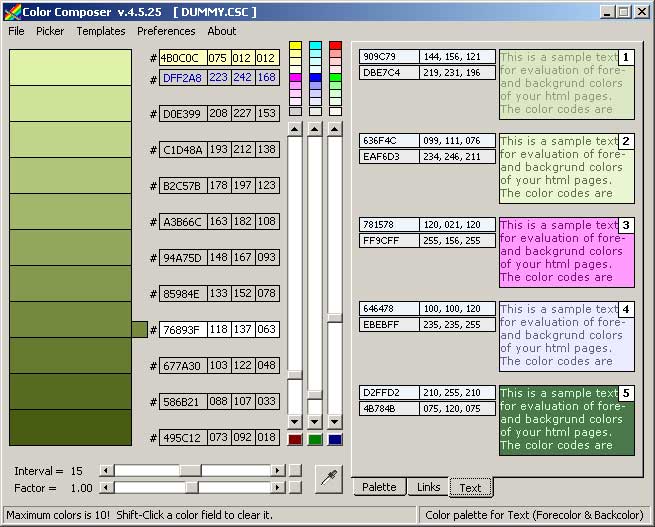
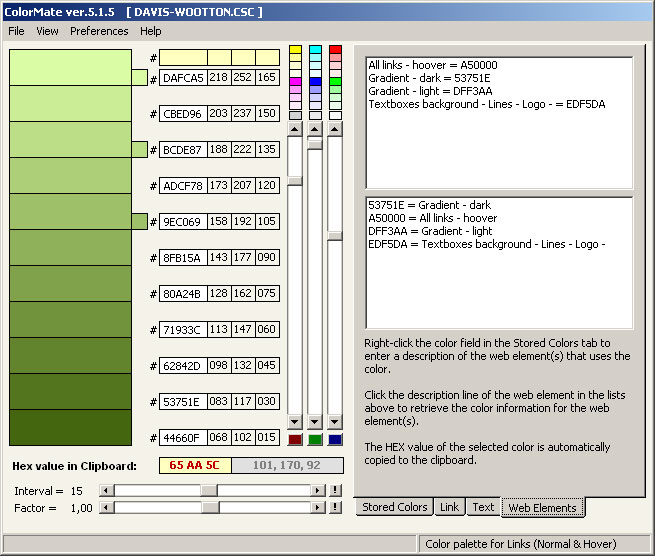
of up to ten colors.The program lets you subsequently modify the retrieved color in a number of ways and store the derived colors in the color palette. The palette can be saved and loaded to facilitate handling color information during web development. The program is limited to handling RGB colors defined by a six-digit hex number of the form #A1B2C3. Double clicking a color hex code followed by typing Crtl+C (= copy) copies the hex number to the clipboard. To insert the color in your web element simply type Ctrl+V (= paste). Adjusting colors Use the vertical scrollbars on the color palette form (opened by clicking Open Editor on the color picker form) to adjust existing colors and to create new ones. The main form includes two additional controls: The "Interval" scrollbar regulates the step size of the 11-color column on the left-hand side of the main form. The second horizontal scrollbar (Factor) shifts all colors in the column towards lighter or darker colors while preserving the interval value. Predefined color schemes A number of predefined color schemes are accessible by clicking one of the small colored fields at the top-center of the main form. The three vertical scrollbars can be locked/unlocked together by clicking one or more of the small RGB command buttons below the scrollbar. Storing colors Clicking one of the color fields on the left-hand color column toggles a small colored field pointing towards the hex value of the color. Clicking the small field includes the selected color in the palette on the right hand side of the main form. Individual fields of the color palette are cleared by right-clicking the field. A maximum of 10 colors can be stored in the color palette. The color picker The color picker form is displayed (and the color palette form is hidden) when you start ColorMate. Using the color picker is quite simple: Click - and hold down - the left mouse button while dragging the eyedropper (located within the red square) on the computer screen to select the desired color from any element displayed on your screen. Releasing the left mouse button selects the color at the tip of the eyedropper and loads the gradient column on the form. Clicking anywhere within the gradient on the eyedropper form replaces the selected color by the lighter color determined by the "position of the click" in the gradient. A separate field has been included displaying the complementary color. Transfer a color from the color picker to the palette Clicking "Store" transfers the selected color to the main form generating a new divided gradient. "Reset Previous" clears the previous color displayed below the color currently selected by the eyedropper. At the bottom of the large color field, the complementary color is shown. The X-Y values displays the current position in pixels of the tip of the eyedropper on your screen. Download program ColorMate 5.1.5 is freeware and can be downloaded here: ColorMate 5.1.5 Screenshots Color Picker form 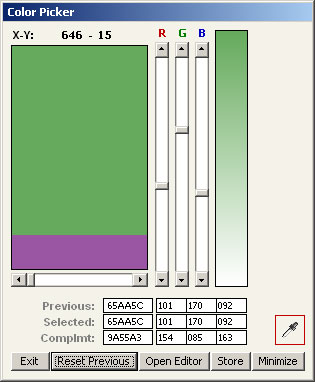 Color palette. The main form contains a number of options for modifying the selected color. 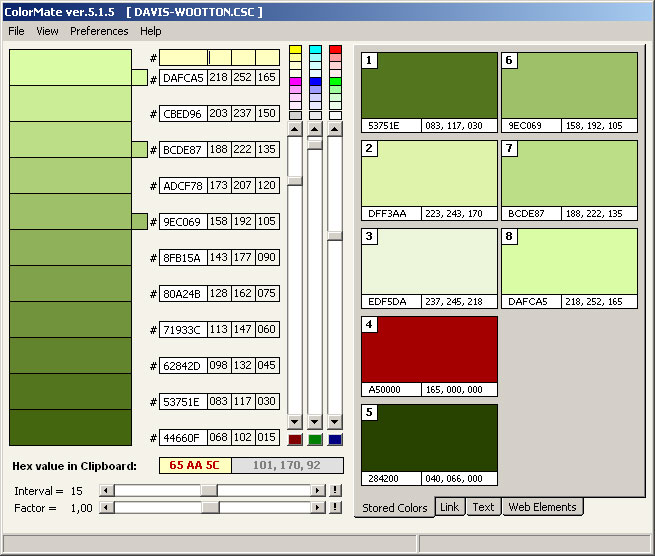 To save screen space, the main form can be displayed in a reduced view (press F3) or in full view ( press F4)
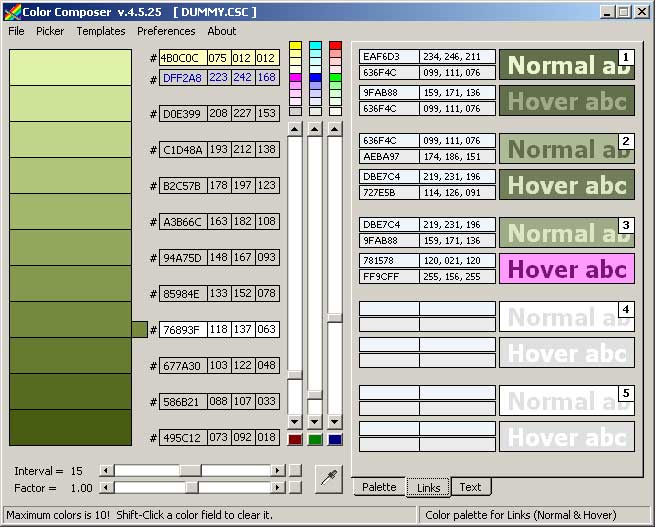
Colors selected for links
(a and a:hover) |